Setting up a wireless CarPlay adapter
Setup is the same idea on every model: the adapter goes where the cable went, your iPhone pairs with it over Bluetooth, and from then on the two talk over Wi-Fi. Most problems come from skipping the first step — checking that the car really runs wired CarPlay in that port.
Before you start
- Wired CarPlay works in this port. Plug your iPhone in with a cable; CarPlay must appear. If it doesn't, see the two-step test.
- Your phone meets the maker's minimum. AAWireless asks for iPhone X or newer, CarlinKit iPhone 6 and iOS 10, Ottocast iOS 10, Aluratek iPhone 5 and iOS 10. Apple also says to keep the iPhone on the latest iOS. The iPhone requirement checker runs your model against each.
- Park somewhere quiet. First pairing involves a few prompts on the phone; don't do it while driving. Setting up in a rental? See rental cars.
The steps
- Car on, cable out. Start the car (or switch on the ignition) so the USB port has power, and unplug the phone.
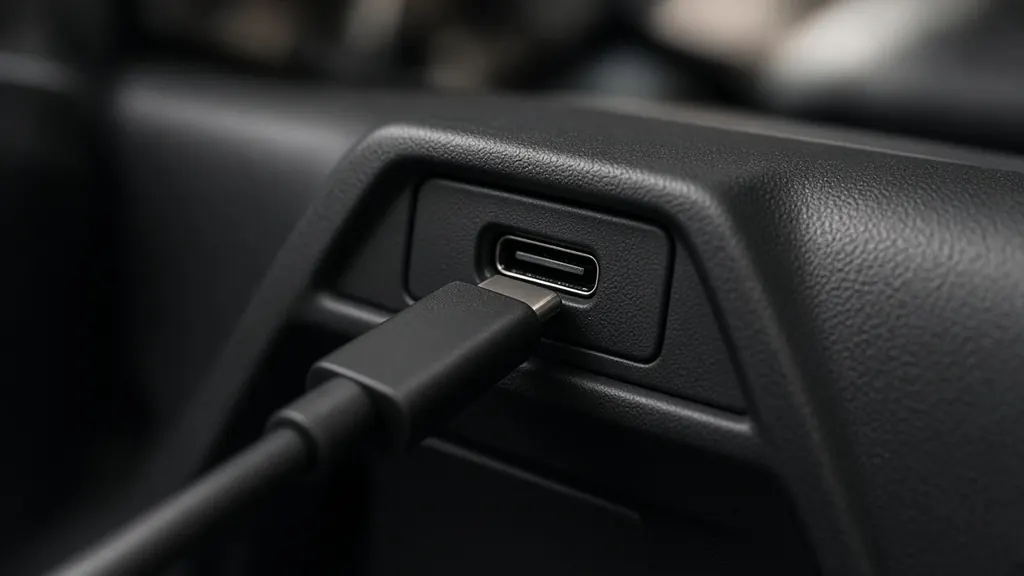
- Plug the adapter into the CarPlay port. Use the cable or USB-C adapter from the box if your port needs it (which port). The car should show that something is connected — on many models the adapter's own start screen or an indicator light.
- Pair over Bluetooth. On the iPhone, open Bluetooth and select the adapter. AAWireless describes what happens next on its product page: Bluetooth only hands over the Wi-Fi details, then everything runs over Wi-Fi.
- Accept the CarPlay prompt. The iPhone asks whether to use CarPlay with the car; allow it.
- Check Auto-Join. Apple: in Wi-Fi settings, tap the CarPlay network and check that Auto-Join is on. Without it, the phone may not reconnect next time.
- Test a restart. Switch the car off and on. CarPlay should come back without touching the phone, after a wait — published times run from about 7 to 26 seconds (connection time); much slower is covered in slow to connect.
Maker-specific steps
| Adapter | Firmware updates | Second phone |
|---|---|---|
| AAWireless TWO+ | Companion app, updates over the air | Pairs unlimited phones; button switches to the next phone |
| CarlinKit 5.0 (CPC200-2air) | Over the air, through a browser page on the adapter | not published on the maker page |
| CarlinKit Mini Ultra 3 | Over the air, through a browser page on the adapter | not published on the maker page |
| Ottocast Mini (2-in-1) | Over the air (FOTA) | One-button switching; reconnects to the last phone |
| Ottocast Mini Cube 3.0 | Over the air (FOTA/OTA) | Remembers your phone; to switch, disconnect the current phone |
| Aluratek AWCPA01F | not published | not published |
| Aluratek AWCGN01F | not published | The same maker page promises a toggle between two phones, yet its FAQ says only one phone connects at a time |
From each maker's product page, read Nov 18, 2026. The maker's manual in the box has the exact screens.
Check for a firmware update soon after setup, while you still have the box and receipt — the routes differ by maker (firmware updates).
If setup stalls
- The adapter never lights up or appears: it isn't getting power or data. Try the other ports, or the USB-C adapter from the box. If it lights up but CarPlay never starts, see only charging.
- Bluetooth pairs, CarPlay never starts: make sure Wi-Fi is on and the phone isn't on another network, such as the car's own hotspot — Ford says SYNC 4 CarPlay can't run while the phone is on it.
- It worked once and not again: Apple's steps include Settings › General › CarPlay › your car › Forget This Car, then setting it up again.
The full order of checks is on won't connect. If the car remembers two phones, the adapter may pick the other one — see several phones, one adapter.
Setup questions are rare in the owner posts we read on X: 1 of 23 questions. Most asked which one to buy or whether it would work in their car.
Sources checked: Checked Nov 18, 2026 · Updated 2026-11-18 · How this site works